Building a workflow
You don't write a workflow from a blank page. The workflow assistant walks the tree with you one node at a time: you say what each step should do in business terms, it asks what it needs to know, and it proposes the logic for you to accept, refine or rewrite.
Creating a workflow
In a scenario, open Automate and choose New Workflow. The dialog asks for:
- Name — pre-filled with the next free Workflow N; type to replace it.
- Description (optional) — what the workflow does and when it should run.
- Which products can this workflow price?
- Only products that already have their own rule (the default) — products that inherit their price from higher in the hierarchy are skipped, so the workflow never turns inherited pricing into product-level rules.
- Any product, creating product-level rules where needed — a product that inherits its price today gets a rule of its own and stops inheriting. Choose this for products with no price yet, or when product-level pricing is the point of the workflow.
Both choices can be changed later. Create workflow opens the canvas. To start from an existing policy instead, hover a workflow in the list and choose Duplicate.
Describing each step
A new workflow opens with its trigger and the assistant ready. Each node starts with one question:
| Node | The assistant asks |
|---|---|
| Trigger | Which products should this workflow include? |
| Decision | What should this decision split the products on? |
| Action | What should this action do to the products that reach it? |
Answer as you would explain it to a colleague — "categories where year-to-date volume is down more than 10% on last year", "match the lowest competitor price, but never below a 15% margin". A trigger that should cover everything can skip the questions with Target all products.
When the description leaves something open, the assistant asks targeted follow-up questions — pick an option, type your own answer, or Skip. It then proposes the node: a title, a plain-language summary of what it does, and the logic behind it.
- Create node accepts the proposal.
- Not quite right? — describe what should change and the assistant revises the proposal.
After each node, the build moves on to the next open branch and asks whether it should be an Action, a Decision, or — on a decision's branch — No action, which leaves those products at their current price. If you close the assistant, Continue building picks up where you left off. When every branch is finished, the assistant summarises the workflow and offers Run workflow or Keep editing.
Changing a node later
Select any node to open its drawer:
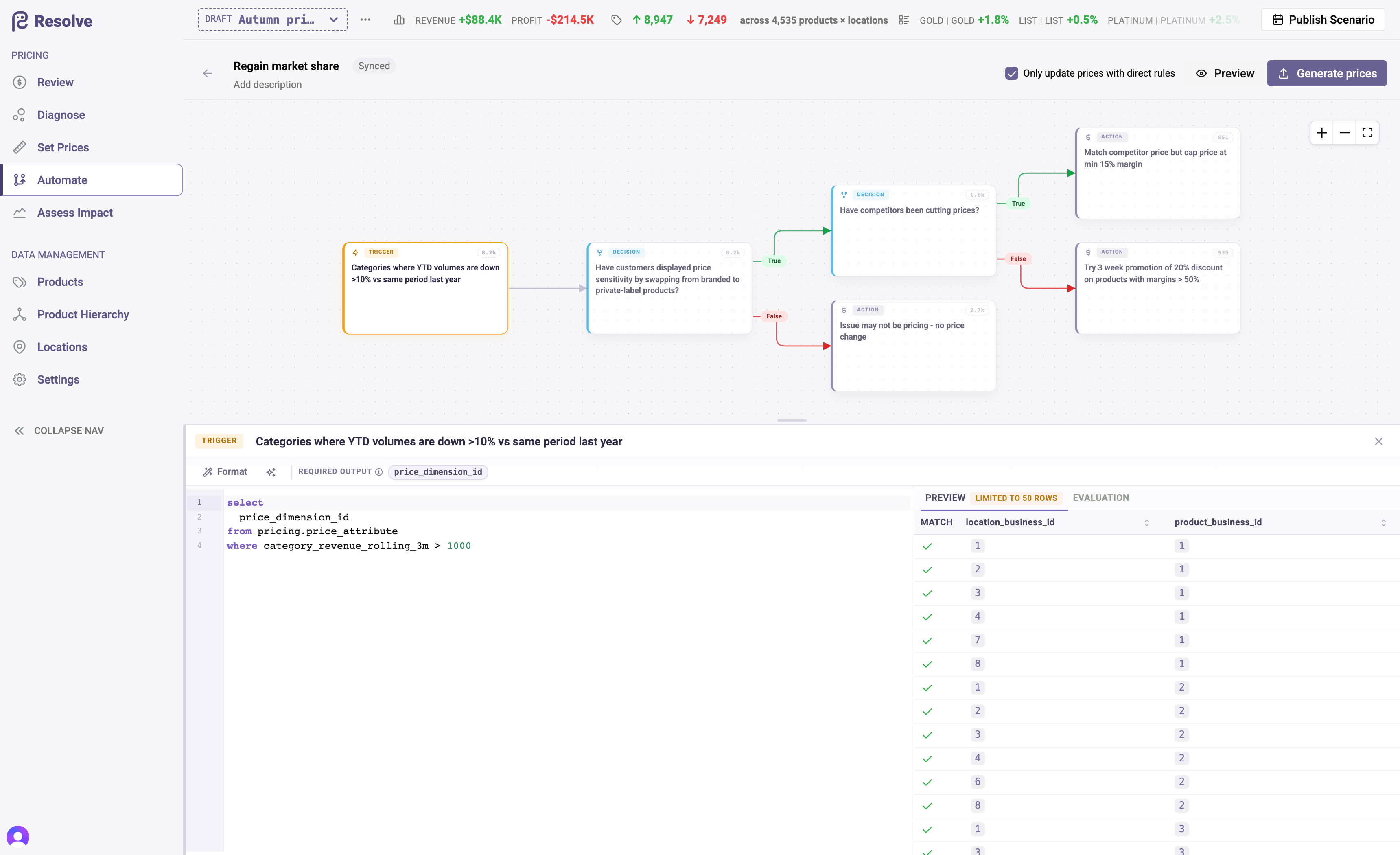
- Revise — describe a change in plain language; review the proposed version, then Accept or Cancel (Undo revision puts the previous version back).
- Preview — the rows the node selects, with sorting and filters (see Preview, then run).
- Evaluation — the node's predicted impact once the workflow has been evaluated (see Evaluating a workflow).
The node's logic is also directly editable in the drawer, with suggestions for your attributes, segments and hierarchy. Edits to the logic are held until you choose Save or Cancel; everything else on the canvas saves as you go.
Trust, but verify
Proposals are drafts. The check is short:
- Preview — is the trigger catching roughly the number of products you expected?
- Spot-check each node's sample rows — which products went where, and why.
- Run workflow in a scenario and read the result on the Review grid and in Assess Impact before it goes anywhere near publish.
Describe steps like a policy, not a wish
The clearest answers state population, condition and treatment explicitly — "for products where X, do Y, but never Z". Guardrails you say out loud ("but never below cost") become guardrails in the action.
Next: evaluate the workflow before you run it.